Securing Azure App Service/Functions with Twitter/X Authentication
Stop relying on Anonymous access. Secure your WebApps and serverless APIs by integrating Twitter/X social login with this step-by-step guide for .NET developers.

Read on my webiste | Read time : 5 Mins
Introduction
When creating an Azure App Service/ Function, you are prompted to choose an Authorization Level (Anonymous, Function, or Admin). While this controls access to the function keys, it doesn’t “identify” the user. To add true identity-based security, you need App Service Authentication.
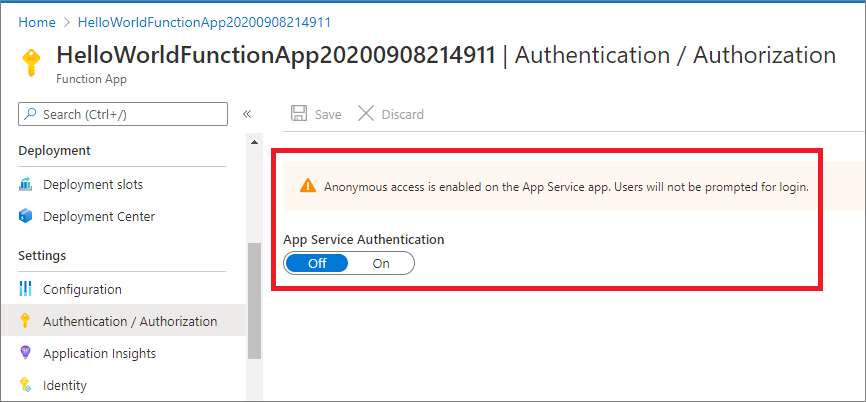
By default, App Service Authentication is Off, meaning users can access your endpoints without logging in. Azure provides built-in integration for several identity providers:
Microsoft Entra ID (formerly Azure AD)
Microsoft Account
Facebook
Google
Twitter (X)
Where to Find Authentication Settings
In the Azure Portal, navigate to: Your Azure App Service > Settings (left menu) > Authentication.
Step 1: Create Your Function App
If you haven’t deployed your first function yet, refer to my step-by-step guide to creating Azure Functions using Visual Studio. Without authentication configured, your function is publicly accessible via its URL.
Step 2: Configure the Twitter (X) Developer App
Before enabling settings in Azure, you must register an application on the Twitter platform.
Log in to the Twitter Developer Portal.
Navigate to Projects & Apps and click Create App.
Enter your App Name and complete the setup.
Save your Keys: Copy the API Key and API Secret Key. You will need these for the Azure Portal.
Set up Permissions: Under User authentication settings, enable OAuth 1.0a or OAuth 2.0 (depending on your requirements) and provide:
Callback URL:
https://<your-app-name>.azurewebsites.net/.auth/login/twitter/callbackWebsite URL:
https://<your-app-name>.azurewebsites.net/
Click Save.
Step 3: Enable Twitter Authentication in Azure
Now, let’s link your Twitter app to your Azure Function:
In the Azure Portal, open your Function App and go to Authentication.
Click Add provider and select Twitter from the dropdown.
Enter the API Key and API Secret obtained from the Twitter Developer Portal.
Restrict Access: Under “App Service authentication settings,” change the Action to take when request is not authenticated to Log in with Twitter.
Click Save.
Step 4: Testing the Integration
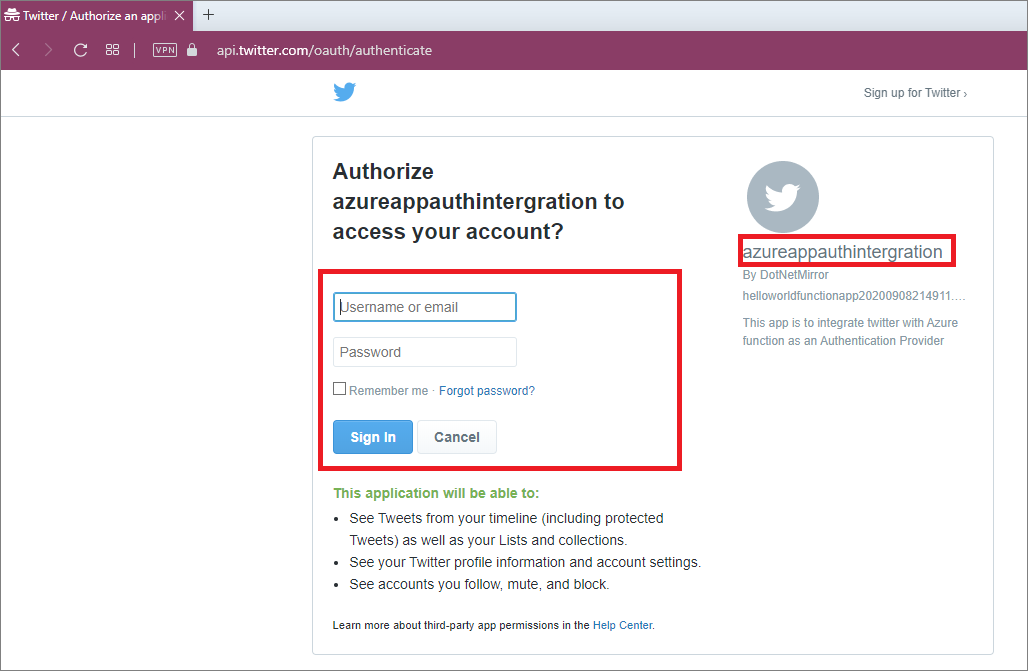
Access your Function App URL in a browser. Instead of the function output, you should now be redirected to a Twitter login page.
Enter your Twitter credentials.
Click Authorize App.
Once authenticated, Twitter will redirect you back to your Azure Function, and the output will be displayed securely.
How to Disable Authentication
If you need to remove the security layer, simply go back to the Authentication blade in the Azure Portal and delete the Twitter provider or toggle the Authentication setting to Off.
Conclusion
Adding social login to Azure App Service and Functions is a seamless way to secure your APIs without writing custom identity logic. By leveraging App Service Authentication, you offload the complexity of handshake protocols to Azure, allowing you to focus on your core business logic.
References:
Youtube Video Link